

MCP and Klex Bots
How Klex Bots use MCP servers to work with computers and apps.
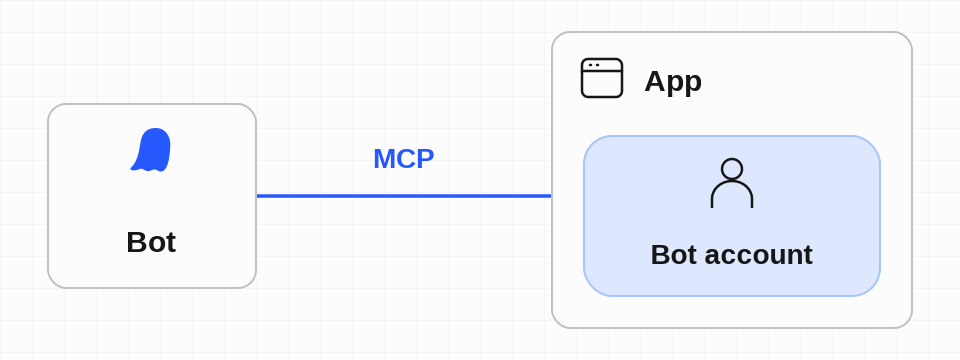
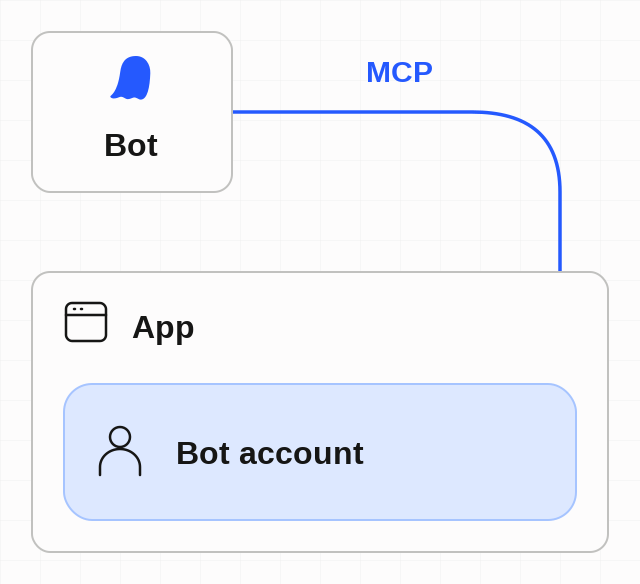
Model Context Protocol (MCP) connects a Klex Bot to external environments. An MCP server can expose a computer or an app; the Bot uses the capabilities the server provides to work there.
Klex offers built-in MCP servers and supports other MCP servers. The capabilities available depend on the server:
- Tools let the Bot request actions or information from the server.
- Resources provide content the Bot can discover and open.
- Push notifications can deliver messages and other events when the server supports the Klex MCP Push Notifications extension.
- MCP Events & Triggers, a draft MCP extension, allows the Bot to discover and watch supported server events. Watches persist across chats and restarts, but events during downtime can be lost. Setting up a watch does not configure the external service for you.
These MCP capabilities can prompt the Bot to work when a message arrives or something changes in an app. They depend on the connected server’s support and setup; no separate Klex-specific gateway is required.
Adding a server
You can manage a Bot’s MCP connections in the Cloud dashboard. A Bot can also add a new remote HTTP or HTTPS MCP server itself. The add-server capability cannot edit or remove existing server configurations. If the new server requires OAuth, a user can authorize it in the Cloud interface.
Only connect servers you trust. A connection makes the server’s capabilities available to the Bot; access within an app also depends on the account and permissions configured there. Review the Bot’s connections and grant its accounts only the access they need. See Connections to computers and apps for more on managing access.
Add a remote server
- In Klex Cloud, open your Bot and select Connectors. You need organization owner or admin access to manage connectors.
- Choose Connect an MCP in the connector catalog, enter the server’s URL and name, and add any required headers under Advanced options.
- Select Connect and complete authorization if prompted. Check the connection status before relying on the server.
In the interactive Klex app, you can add a streamable HTTP server:
- Open Settings → MCP Servers and press
a. - Enter a unique server name and an absolute HTTP or HTTPS URL. Use HTTPS for remote services that carry credentials.
- If the server requires custom headers, press
ato add each name and value. Treat credential values as secrets. - Press
sto add the server, then check its status in the server list. A saved configuration does not by itself mean the server is connected.
To inspect a server, select it and press Enter. Its detail screen shows its status, transport, tool count, and push-notification support. From there, e edits its configuration and d removes it after confirmation. On removal, Klex deletes local OAuth credentials and attempts token revocation when the provider supports it. Revocation can fail, so check the account’s permissions separately in the connected app.
For OAuth authorization through the Cloud interface, the Bot must be enrolled and have a connected Cloud tunnel. A standalone Bot without Cloud enrollment cannot use that Cloud-relayed authorization flow.
If a connection needs attention
A server may need authorization or fail to connect. Check its connection status and complete any required authorization. If it still cannot connect, check the server address, credentials, and whether the server is available. The Bot can only use capabilities a connected server exposes.